
While February is the shortest month of the year, it always feels like the longest; especially for us folks experiencing the dead of winter. The monotony of this month makes me feel sluggish and I tend to lack the motivation to do things – all things. To combat these feelings, I like to dive into learning and share out what I have learned.
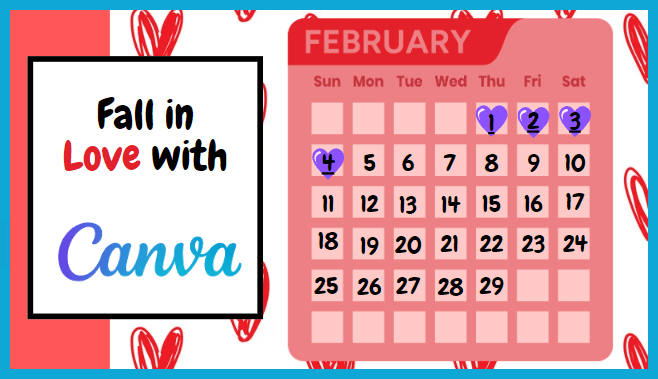
During the month of February, I’m going to give you 29 reasons (for 29 days, and yes, it’s a leap year!) to Fall in Love with Canva. We’ll start this week with some basic tips and move into more advanced options by the end of the month. Stick with me this February, and you can be a Canva guru by March! Every Monday I’ll post the week’s tips in the presentation – which is made in Canva.
Why work in Canva? Canva makes creating professional-looking projects a breeze. Just the collection of tools and fonts alone make Canva a great option for anyone. Not only do I use Canva to create magical presentations for my work in education, but I use it to create designs for my t-shirt business I have on the side (Yes. Just like many teachers, I have a side hustle). I used Canva to create fun birthday party invitations for my kids and made eye-catching fundraising posters required of my own kids for all the activities in which they participate.
Canva provides a FREE PRO account to educators by using registering with a Canva for Education account and getting verified. This takes only minutes and provides you with all the amazing tools, features, and designs Canva has to offer. Once you do this, you can then get your students signed into your Canva Classroom for FREE too. What a great way to offer choice in how students demonstrate their learning by unleashing them into Canva’s myriad of design options.
For those of us living out of Google Slides or PowerPoint, I love the ability to find amazing backgrounds in Canva and then quickly upload those backgrounds into my Google Slides. There’s even a Slides add-on called Slides Toolbox that will let you do this in one click. Well, more than one click, but you get the idea. In PowerPoint, you can easily do the same thing and add Canva backgrounds as your PowerPoint slide backgrounds.
I do this type of presentation each year for the dreary month of February. After learning all about Canva, feel free to check out my previous years’ presentations.
Let me know what other tips and tricks you would like to learn about Canva.
Subscribe to my blog to stay up-to-date with your instructional technology.
Subscribe to my YouTube channel for access to the most current tech tip videos.
Follow me on Instagram and TikTok for tech tips.
Check out my TpT store for engaging activities.
Join my Tech Talk Facebook group to collaborate.
 Cotten Tech Coach